Use local AI for synthesis
After core analysis, optional local-LLM modules can summarise and extract commitments. This walkthrough assumes Ollama is already configured.
Outcome
You will have confirmed Local AI readiness, run (or re-run) summary / Meeting extracts modules when available, and spot-checked synthesis against the transcript.
Starting point
The planning-review transcript is imported and a run context is available. The Overview figure is the BBNJ webinar run, which included local summary (
gemma3:12b).Local AI is enabled and reachable. Follow Local LLM (Ollama) if you still need setup — this page is not an installer guide.
You understand that LLM modules send transcript text to your configured Ollama endpoint.
Local AI is optional. Workflows 1–3 and 5 work without it.
What you’ll do
Confirm LLM readiness on Run Analysis.
Include
llm_summaryand meeting-extracts (llm_action_items) in the run.Launch analysis and note module status.
Read synthesis on Overview / Insights.
Check claims against the transcript.
Walkthrough
Open Run Analysis for the planning-review transcript. If you only need AI modules on top of an existing core run, choose Custom (or a preset that already includes live-LLM consumers) and select the transcript summary and meeting-extracts modules.
Expand LLM setup. When Ollama is healthy you should see the active model and optional per-run overrides. If LLM is disabled or unreachable, the panel says so clearly — enable Ollama under Settings → Configuration and manage models under Settings → Models (LLM), then return here.
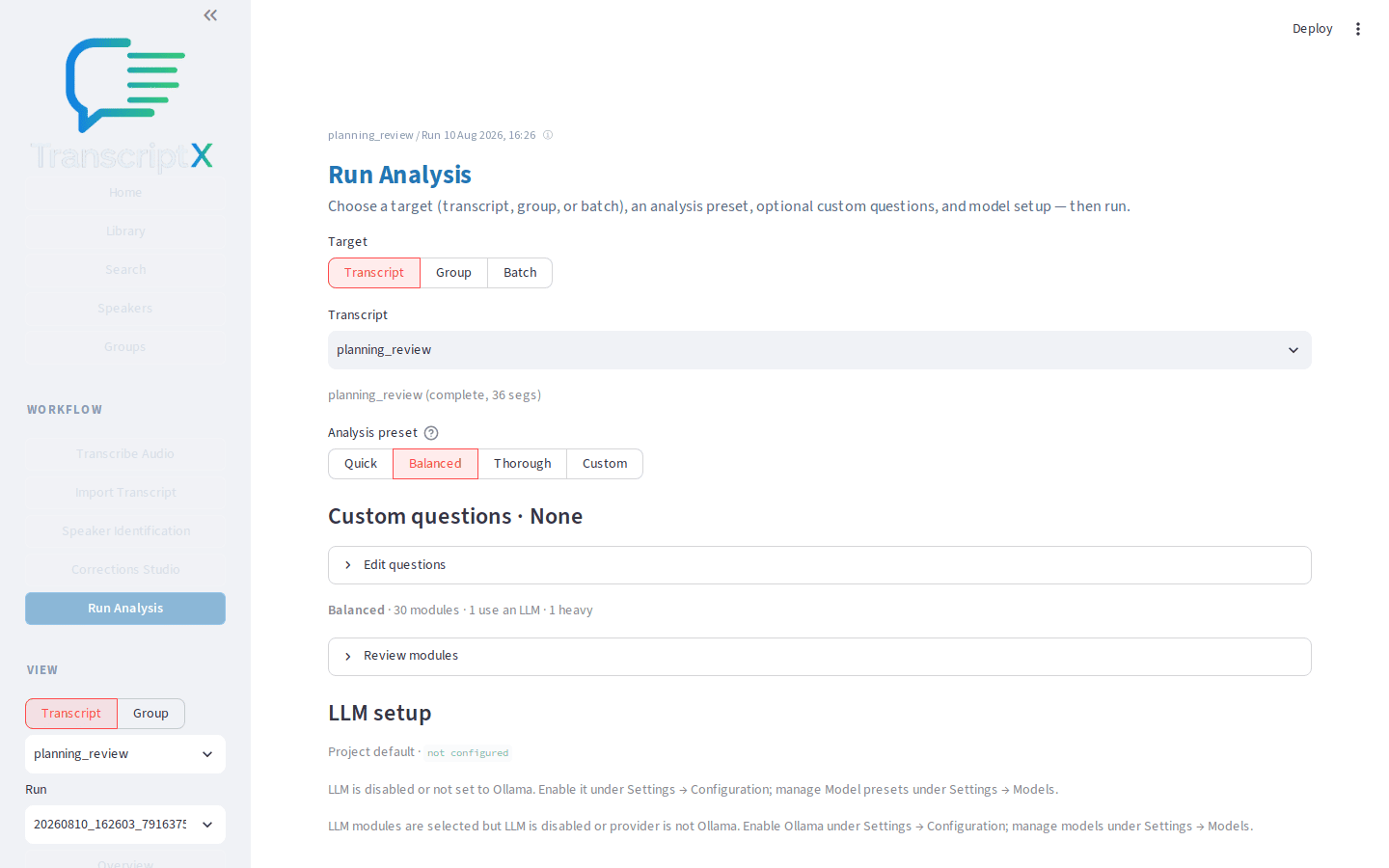
Choose Run analysis. Watch the progress panel: LLM modules may take longer than deterministic ones. Completed, skipped, and failed counts should stay honest if something times out.
Open Overview. After a successful Local AI run, look for summary content and compact meeting extracts with a Local AI badge. Until those modules complete, Overview may still show the deterministic summary from core analysis — useful context, but not Local AI output.
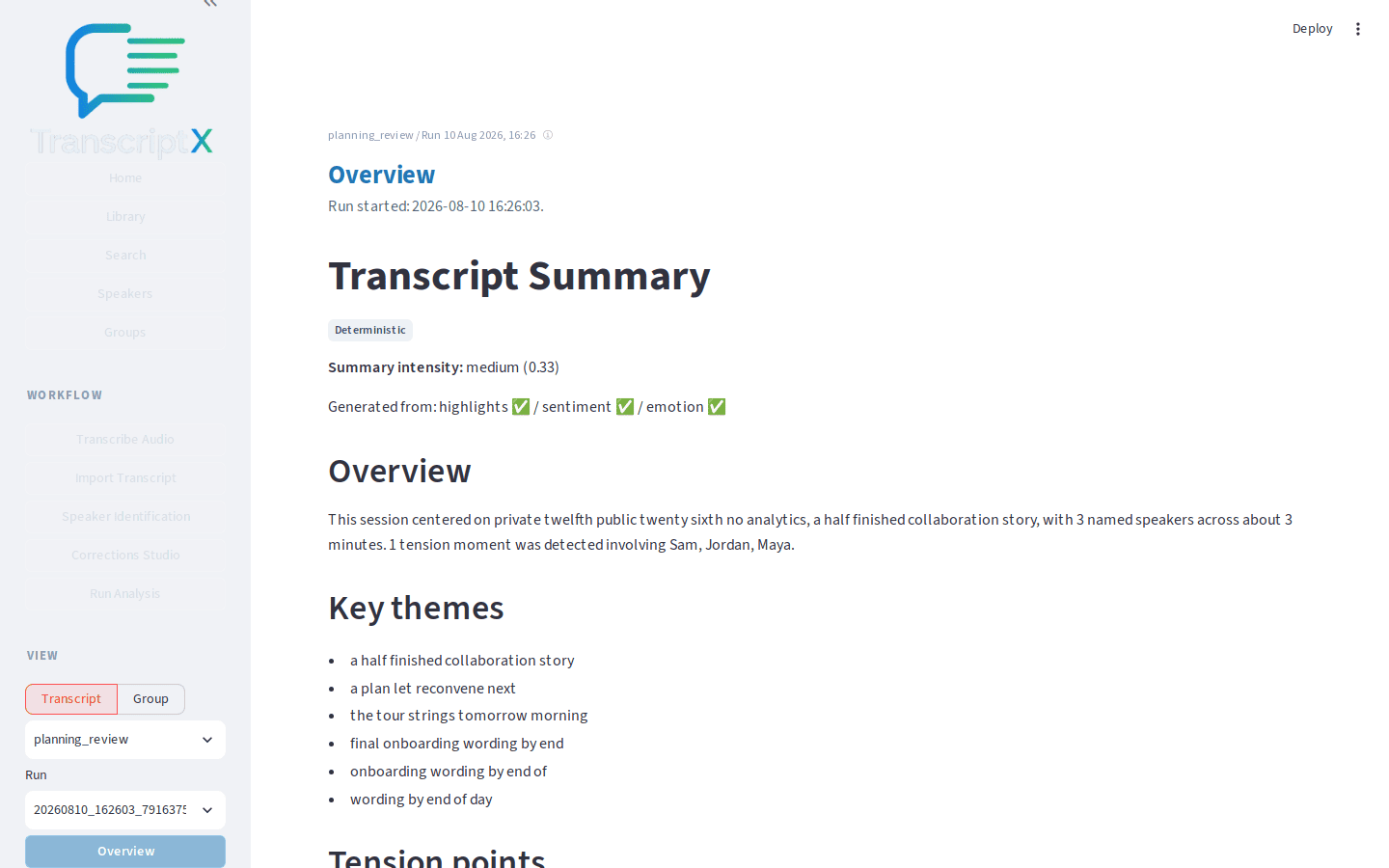
Open Insights → Actions for Meeting extracts when
llm_action_itemscompleted. If that module was skipped, open Insights → Summary and use the deterministic executive summary as a baseline, then re-run with LLM enabled when you want generated extracts.
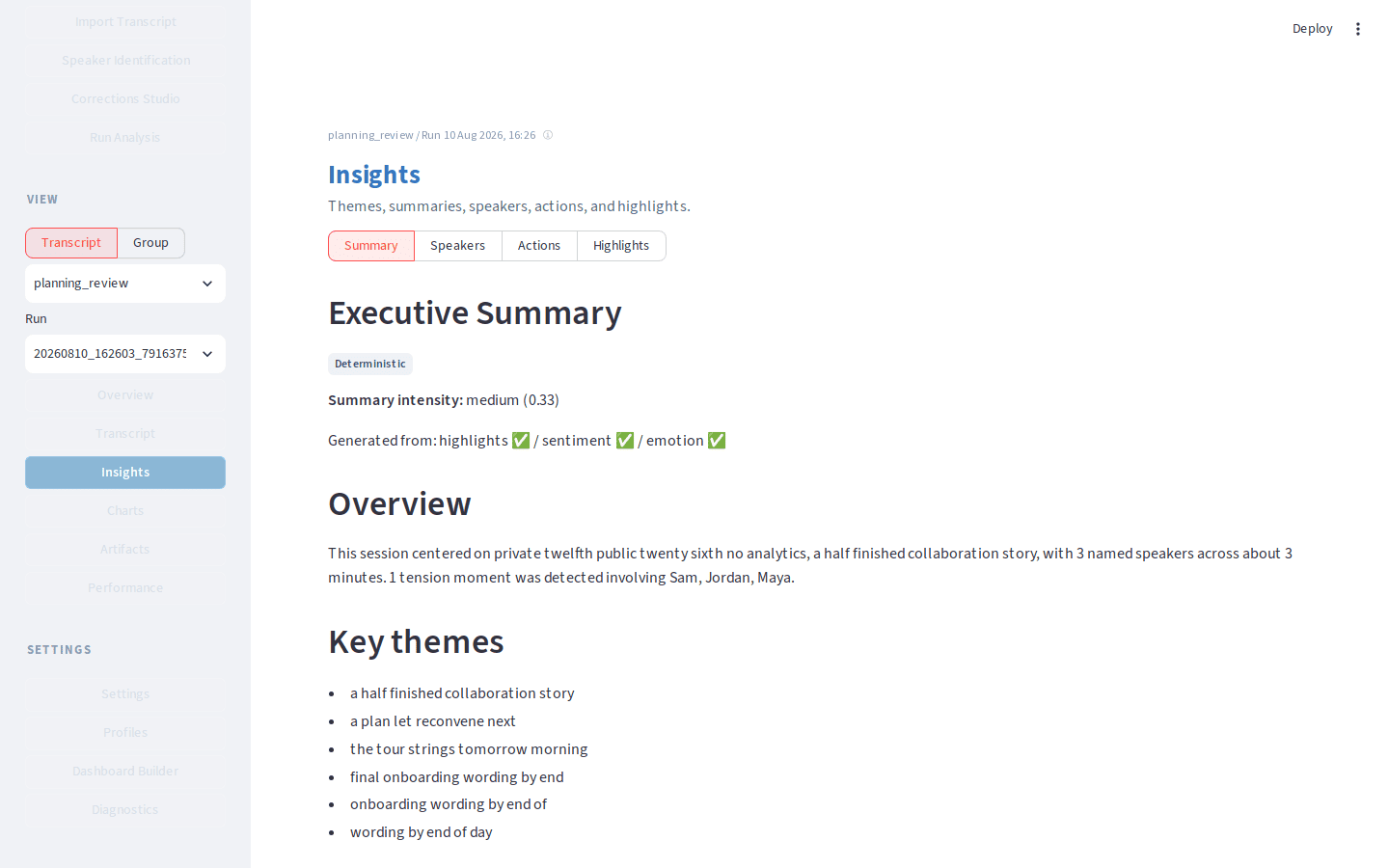
Spot-check two claims against Transcript (for this fixture: private beta on the twelfth, public launch on the twenty-sixth, analytics deferred). Correct the record in your own notes if synthesis drifts.
Treat deterministic modules (highlights, themes, stats) and Local AI synthesis as different kinds of evidence. Prefer the transcript when they conflict.
What to notice
Local AI marks generated interpretation; it is not the same as deterministic analysis.
Balanced may include a limited LLM summary depending on configuration; Custom makes the choice explicit.
Skipped or failed LLM modules should not wipe the rest of the run.
Model choice and timeouts live in settings and LLM docs — not in this walkthrough.
You should now have…
A clear view of Local AI readiness, plus synthesis (Local AI or deterministic baseline) checked against at least two transcript passages.
Next
Known limitations for AI behaviour and privacy notes